Pelican Mesh Network Signal Measurement

Mar 28, 2025
369

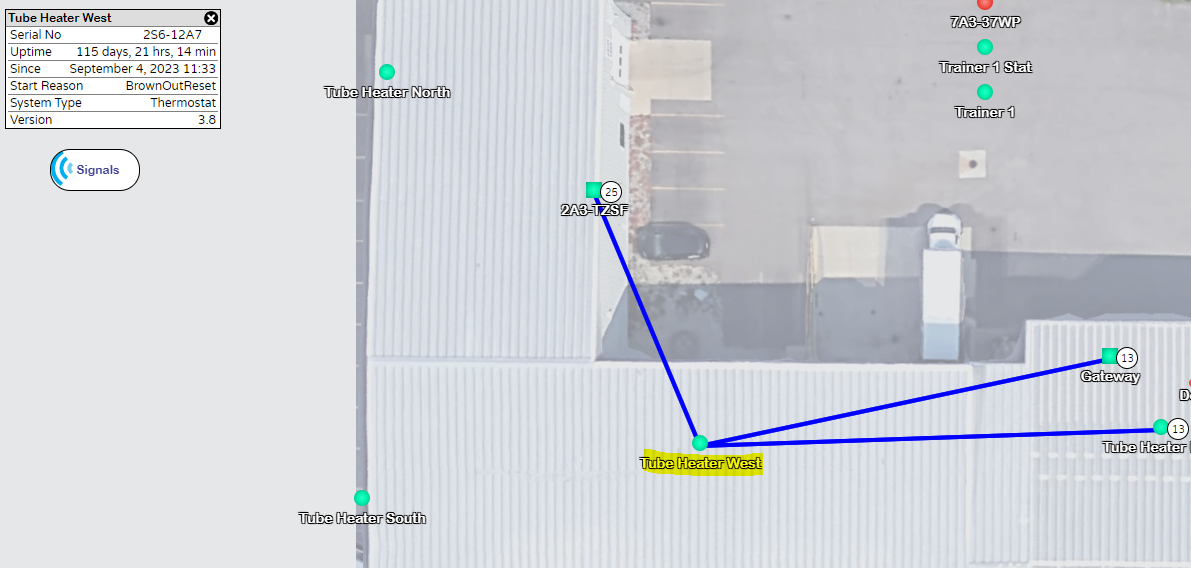
If you have been exploring on the Pelican app, you have probably come across the network map feature in the admin section. This is a cool tool that can have a map or drawing uploaded and the thermostats arranged so people know where they are in the building. This also gives you the ability to see how the thermostats in the network are communicating by drawing lines to all the other thermostats or gateway or repeaters that its connected to. IF you click on a thermostat or repeater you will see a window pop up on the left side. It will have a button underneath it call "Signals".
Two things this can do for you:
- The window can show you how long the device has been powered on and with that you will be able to tell if you have a power issue with a particular unit.
- Using the signals button shows you signal strength. This should be at least a consistent 8-10 or higher.
See below for example,